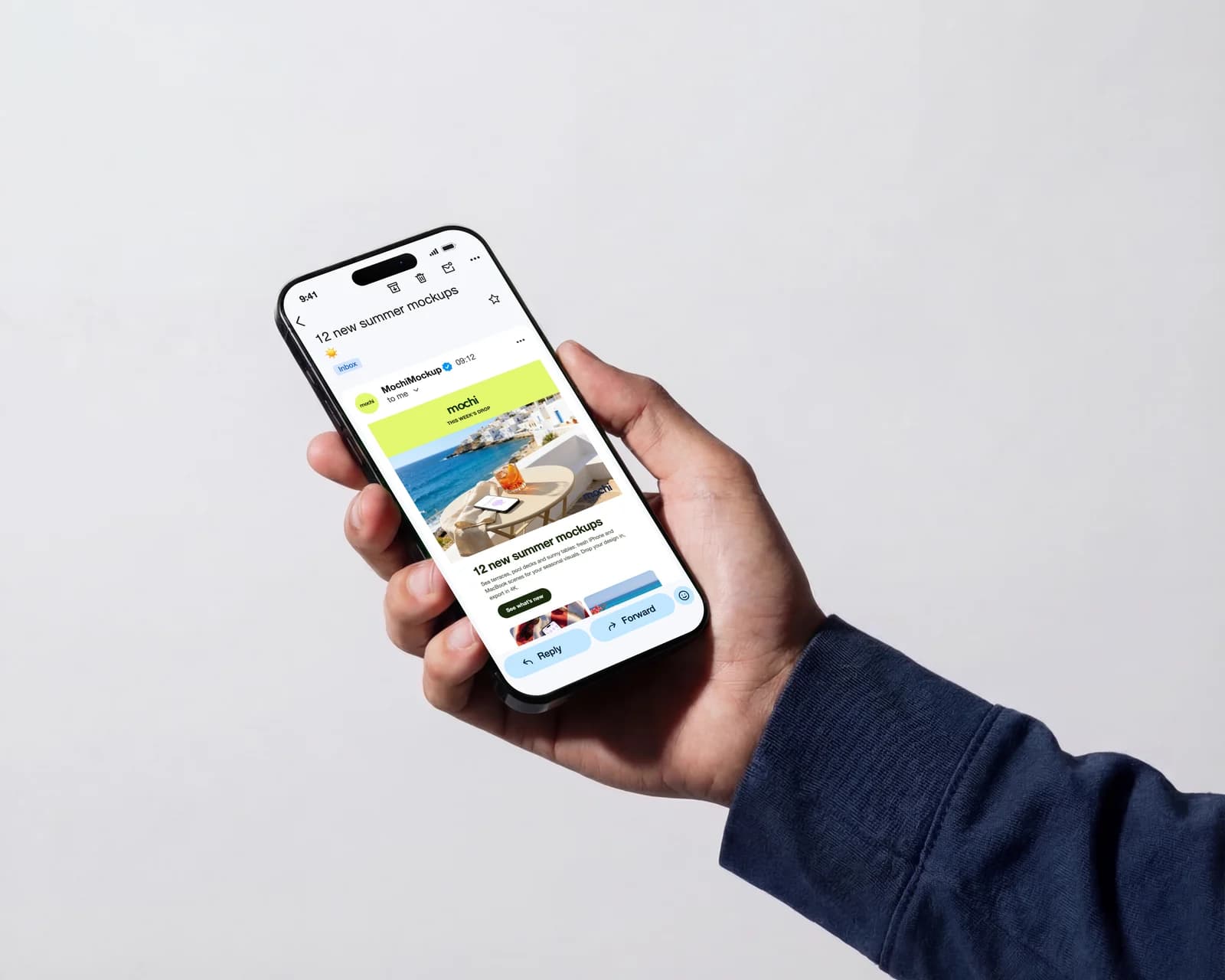
A newsletter design on a white artboard says little about how it will feel in an inbox. An email mockup puts it where it will be read: opened in a mail app, under the sender's name and the subject line. Here is how to make one with the email layout, on a phone and on a laptop.
Step 1: export the newsletter as one tall image
From Figma, your email builder or a browser screenshot, export the whole newsletter as a single PNG, about 600 to 1200 pixels wide. The top of the email is what shows first, so make sure the header and the first message sit there.
Step 2: open the email layout
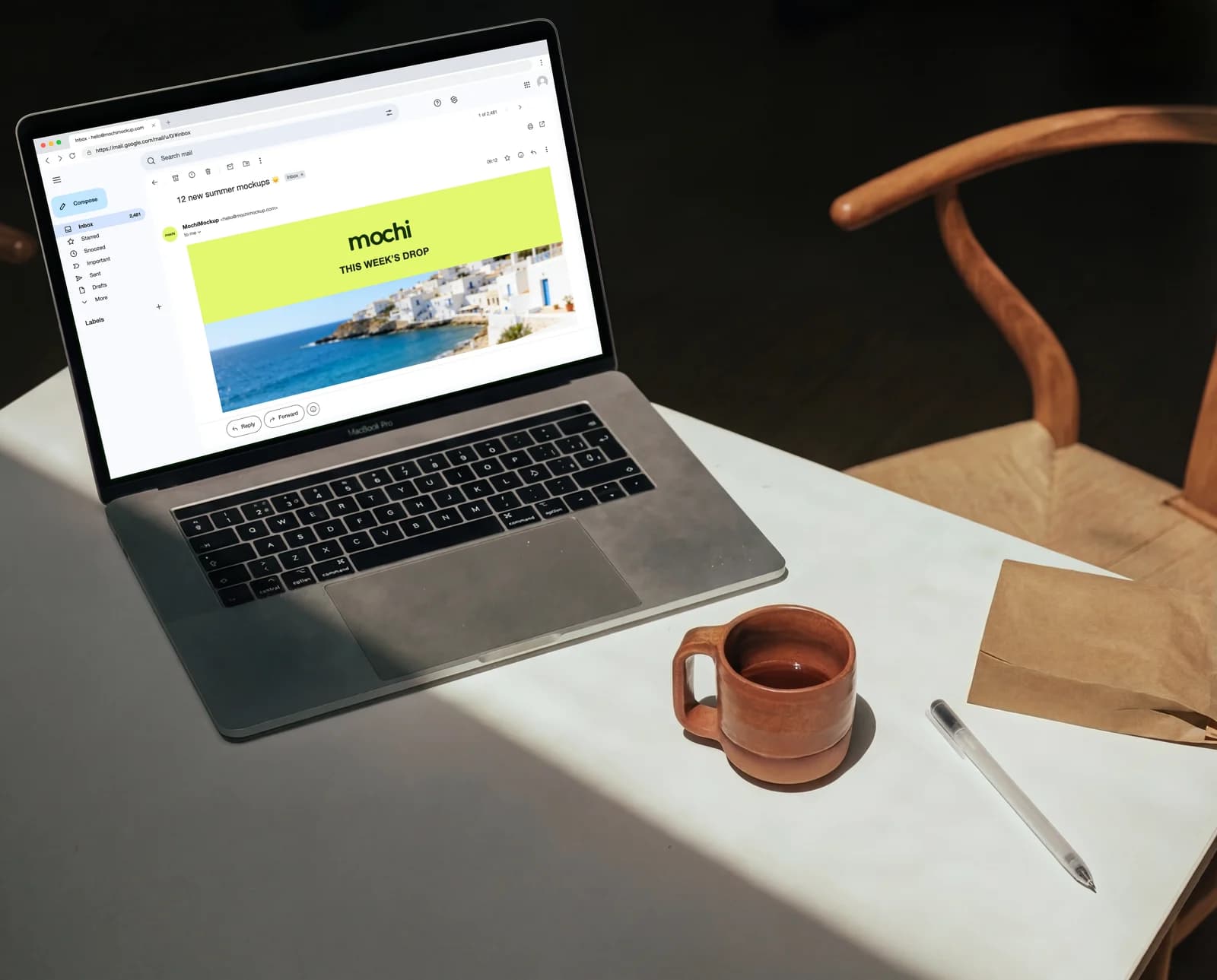
Open the email mockup page (mochimockup.com/layouts/email-mockup) and choose the phone or desktop version. Add the newsletter image: it goes under the subject, aligned at the top and cut at the bottom of the screen, like a real opened email.
Step 3: fill in the sender, subject and time
Type the sender's name and address, add the brand's avatar, and write the real subject line: it is the one thing every subscriber reads, so it deserves to be in the presentation too. The received time is free text.
Step 4: add text above the image, or none
For a plain-text email or a personal note above a visual, write it in the text field: bold, italic, underline and colour are available. Leave the photo out for a text-only email.
Step 5: show it on a phone and a laptop
More than half of emails are opened on a phone, so show that version first. The desktop version, in Gmail on the web with the folders on the left, fits a MacBook mockup for a slide or a case study.
Where to use an email mockup
- Client presentations of a newsletter template or a campaign.
- Case studies and portfolio pages for email design work.
- Landing pages that sell a newsletter: show what subscribers get.
- Onboarding docs showing what the welcome email looks like.