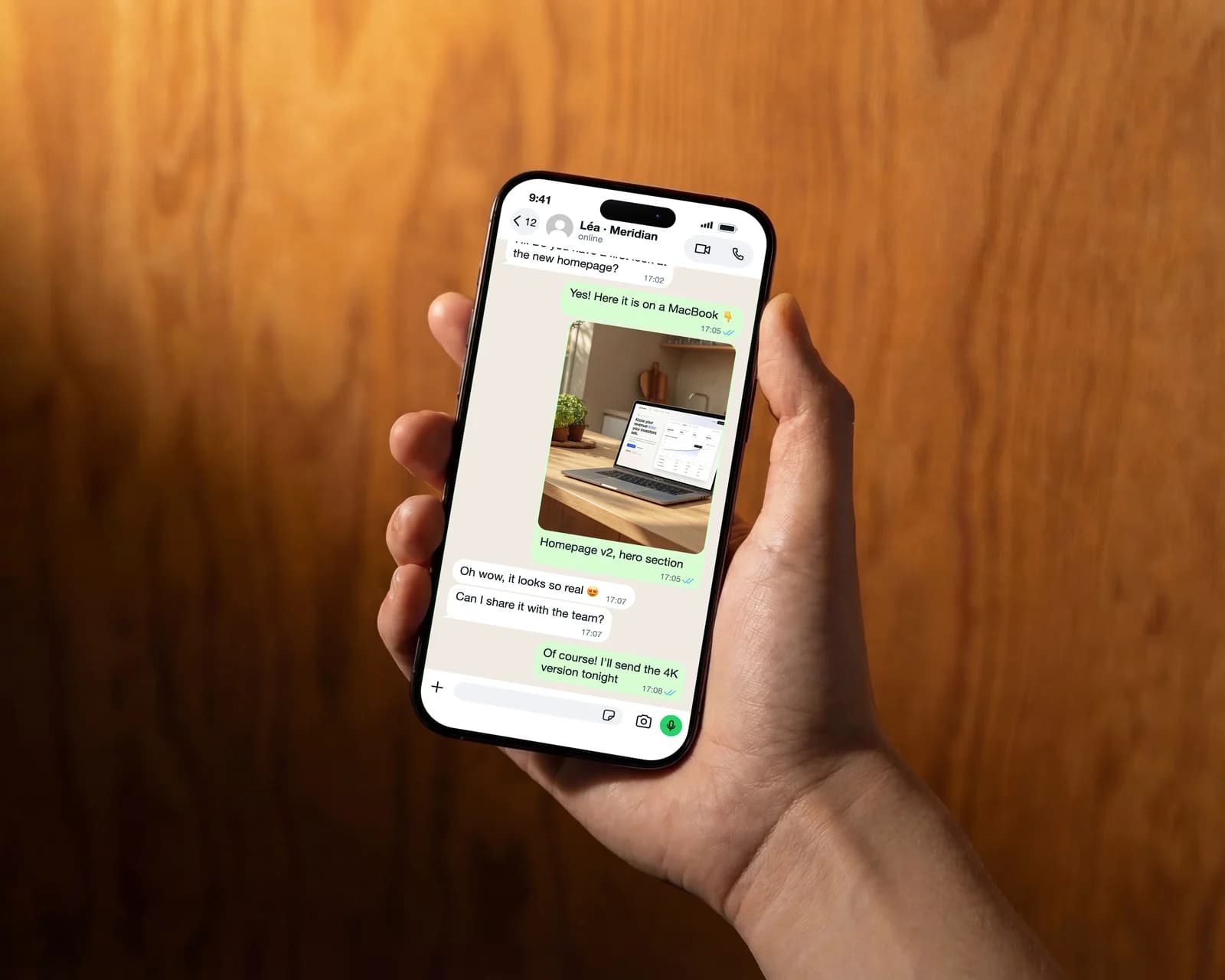
A chat mockup tells a short story in a format everyone recognises: a customer asking a question, a team sharing a result, a friend recommending an app. With the chat layout you write that conversation yourself, message by message, and show it on a phone or in WhatsApp Web.
Step 1: open the chat layout
Open the WhatsApp chat mockup page (mochimockup.com/layouts/whatsapp-chat-mockup) and choose the phone chat or the WhatsApp Web version.
Step 2: name the contact
Type the contact's name, add a profile photo if you want one, and set the line under the name: “online”, “typing…” or a last-seen time.
Step 3: write the conversation
Add the messages one by one. Each has a side (you, in green on the right, or them, on the left), a text and a time. Messages that follow each other on the same side group together like in the app, and the conversation fills from the bottom, so the last message is always in view. Reorder them with the arrows.
Step 4: add a photo to the chat
A message can be a photo, with an optional caption under it. In the example, a designer sends a client the first look at a homepage, already placed in a MacBook mockup.
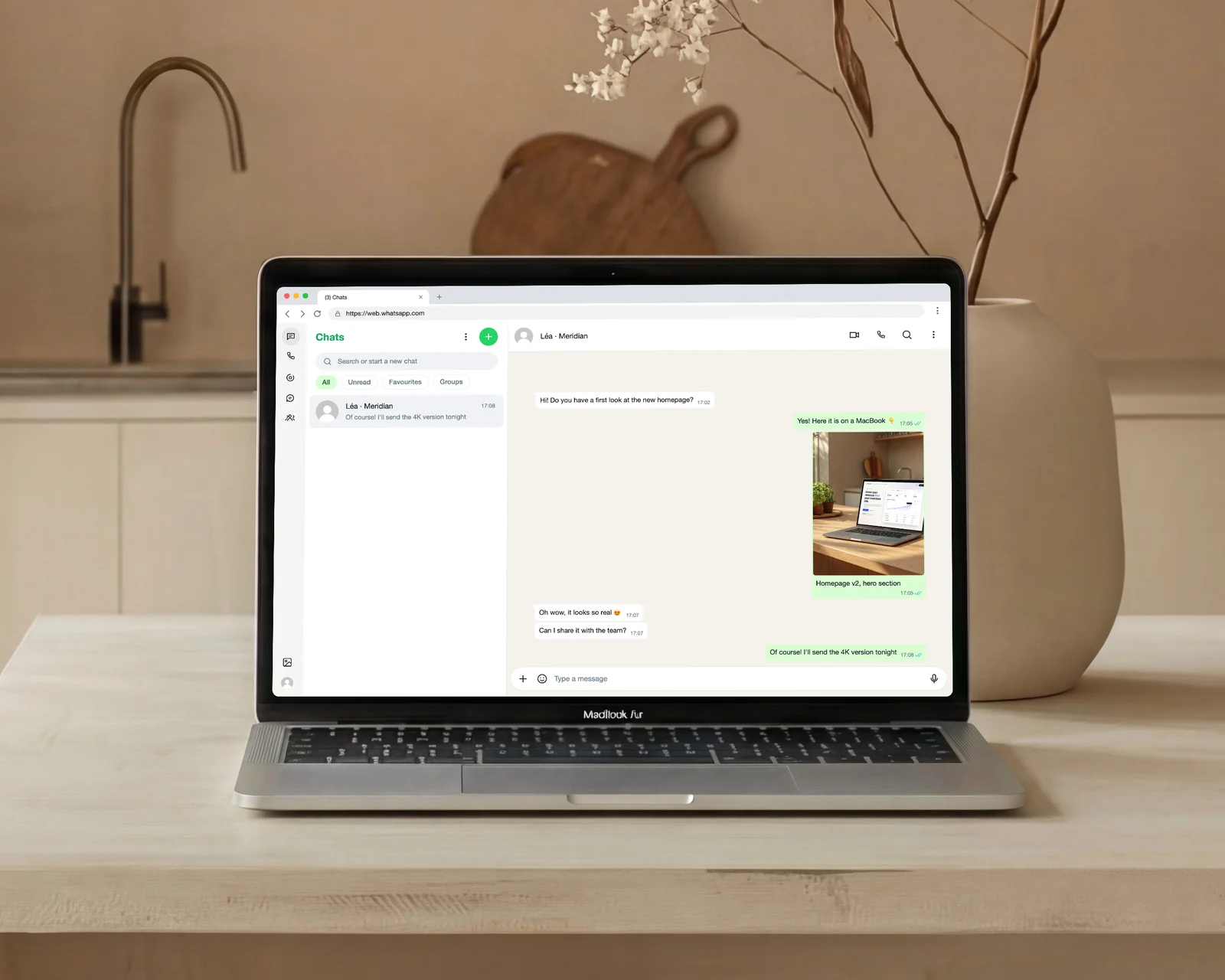
Step 5: phone or WhatsApp Web
The phone version suits ads and social posts; the WhatsApp Web version, with the chat list on the left, suits a tutorial or a slide on a laptop. Both take the same conversation.
Use it honestly
A chat mockup is for illustrating: a scenario in an ad, a step in a tutorial, a testimonial you have permission to quote. It is not for inventing conversations with real people or passing off a fake exchange as real. Our Terms forbid it, and it is the fastest way to lose trust.