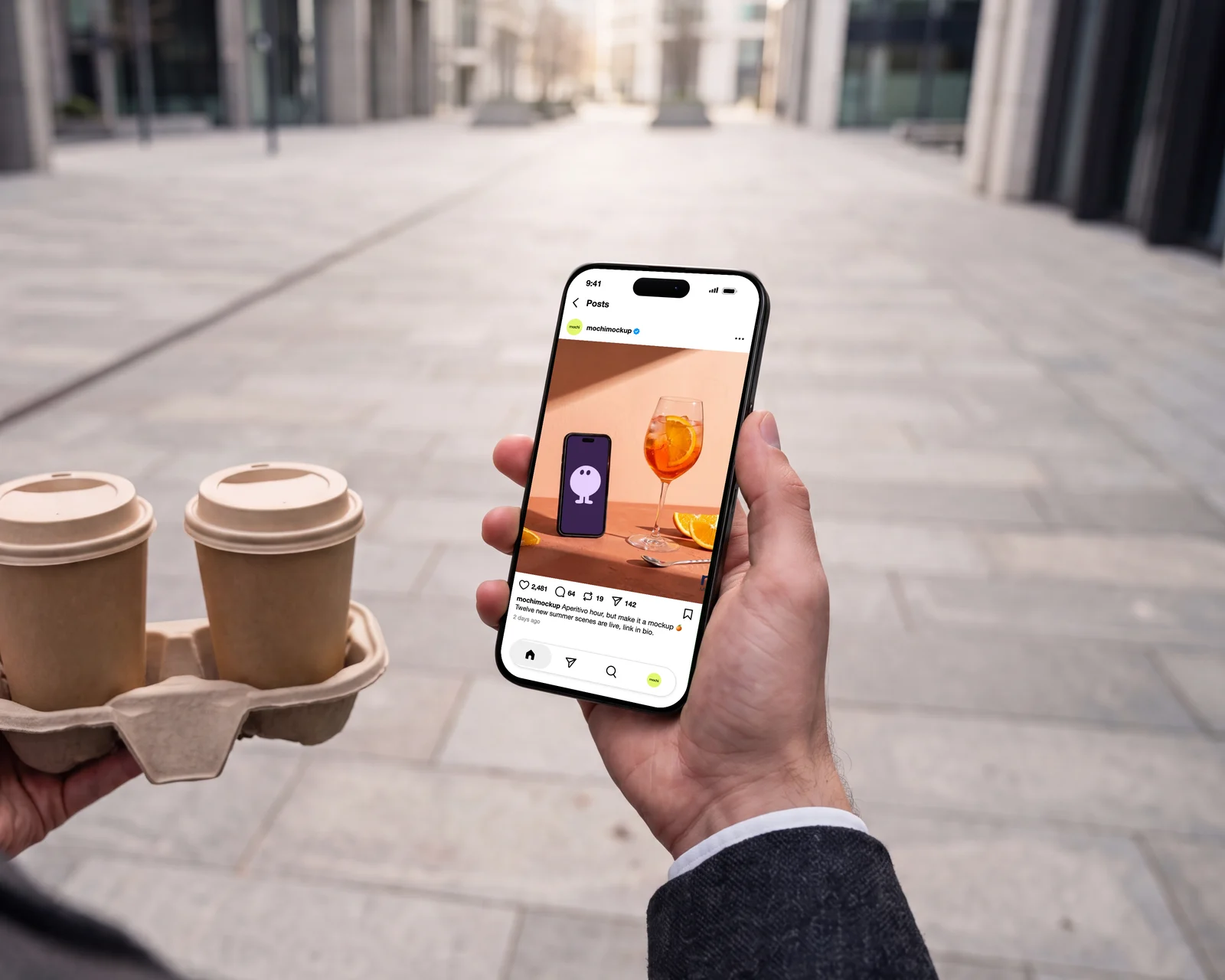
An Instagram post mockup shows a photo the way it will look in the feed, with the profile picture, username, caption, likes and comments around it. It is how you show a client a campaign before it goes live, check that a caption reads well under the photo, or illustrate a case study. Below, the five steps with MochiMockup's Instagram post layout, which is free with an account.
Step 1: open the Instagram post layout
Go to the Instagram post mockup page (mochimockup.com/layouts/instagram-post-mockup) and click the phone version. The same layout is also inside every iPhone mockup: at the upload step, choose “Layout”, then Instagram, then Post. The editor opens with your details on the left and a live preview on the right.
Step 2: add your photo and pick its format
Drop the photo into the photo slot. The crop window opens right away: choose the format the post will really have, portrait 4:5 (the default, and the one that takes the most room in the feed), square 1:1, the newer 3:4, or landscape 1.91:1. What is inside the frame is what shows in the post.
Step 3: fill in the account and the caption
Type the username, add a profile picture and switch the verified badge on or off. Then write the caption: it wraps exactly like in the app, with the username in bold in front. The like, comment, repost and share counts are free numbers, so set them to something believable for the account.
Step 4: choose light or dark mode
The sun and moon switch above the preview flips the whole screen between light and dark mode. A dark post often looks better on a dark slide or a dark landing page; a light one on a white page.
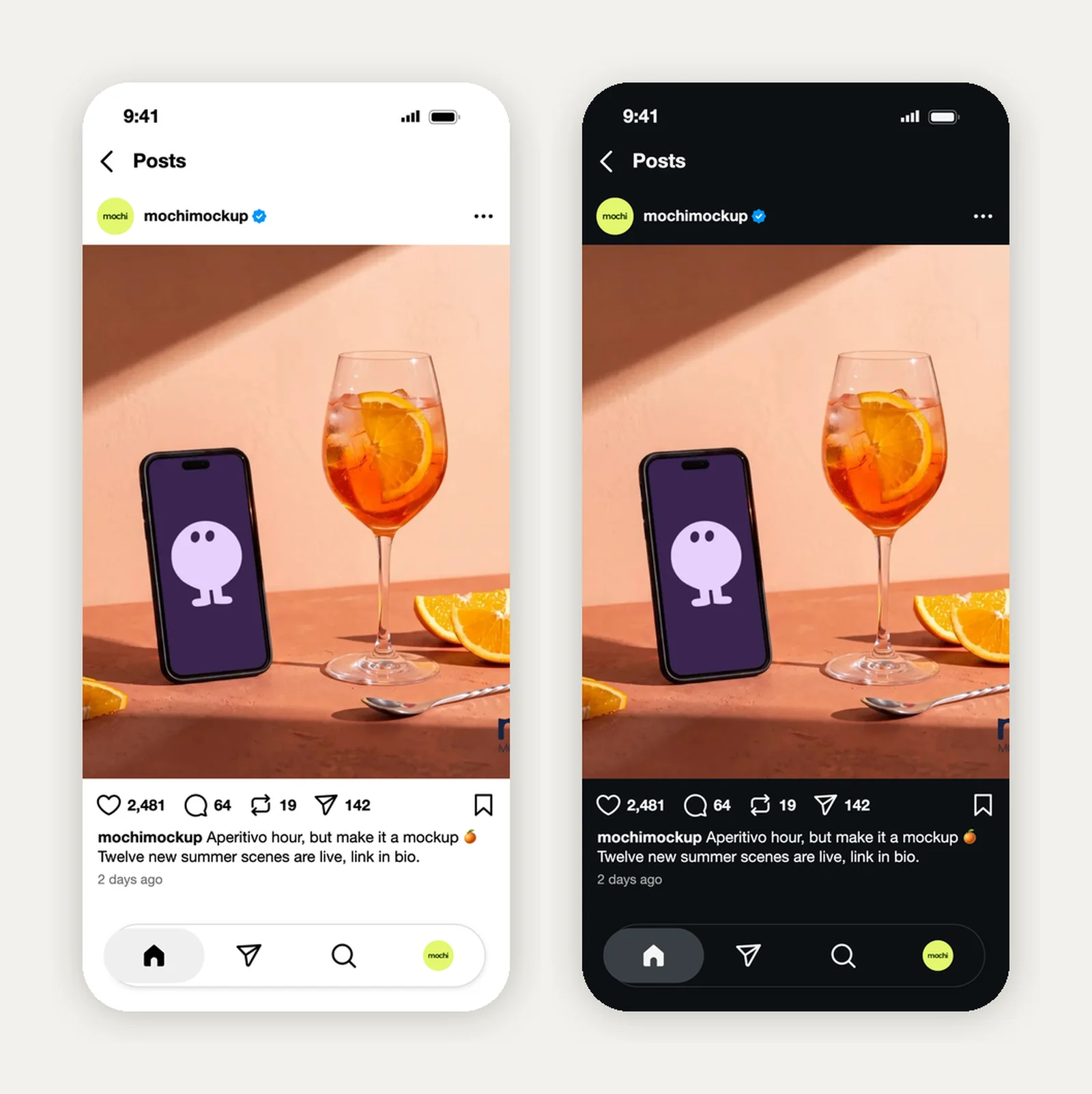
Step 5: download the PNG or put it on an iPhone
From the layouts page, “Download PNG” gives you the screen alone at iPhone resolution (1206 × 2622). From an iPhone mockup, “Put in mockup” places the same screen on the device, with the perspective and reflections of the photo, ready to export in 2K or 4K.
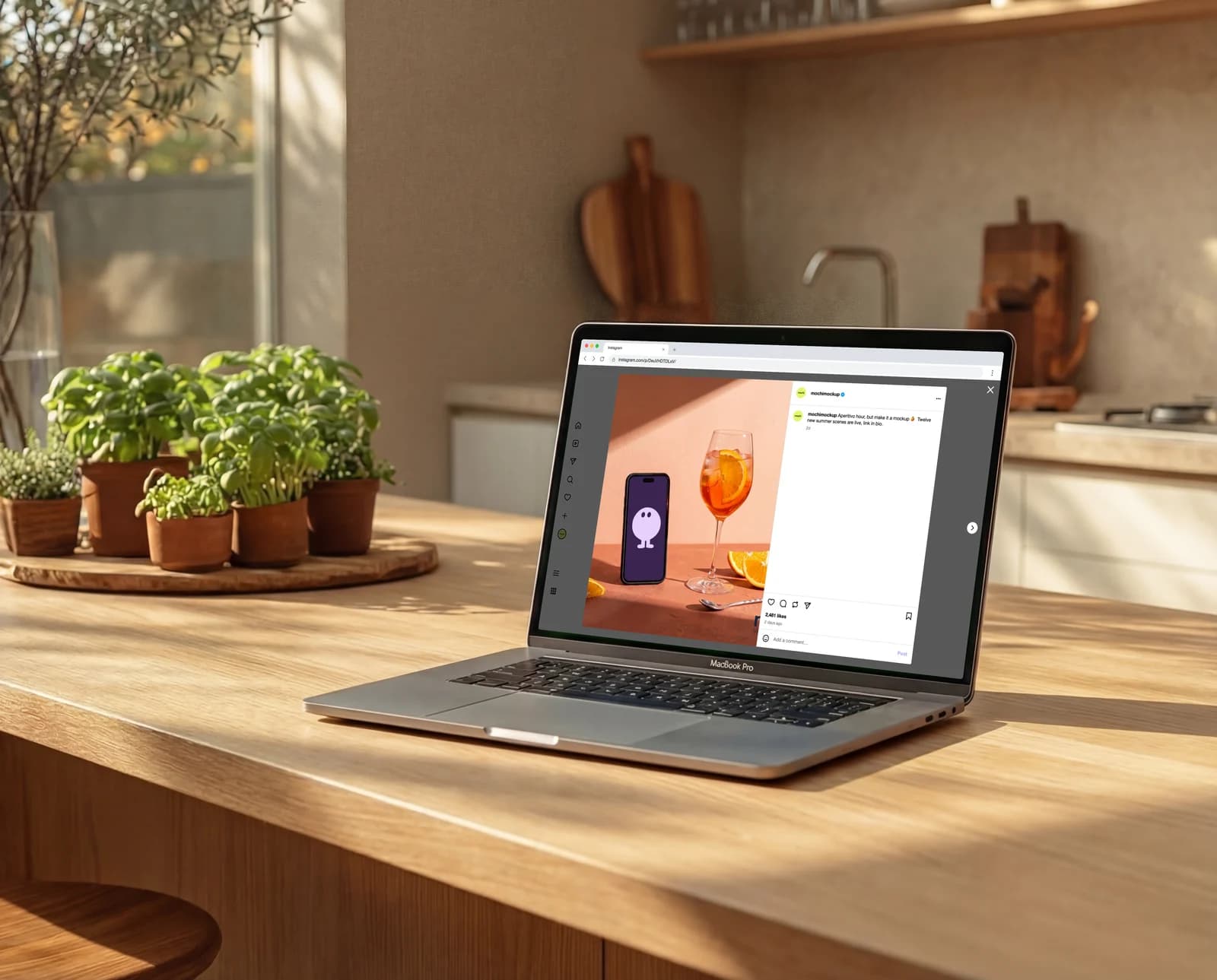
The same post on instagram.com
For a presentation on a laptop, the desktop layout shows the post open on instagram.com: the photo on the left, the caption and comments on the right. It takes the same details, so you can make both versions from one set of inputs and place the second one in a MacBook mockup.
Tips for a convincing post
- Use the real format: if the campaign runs in 4:5, mock it up in 4:5, or the crop will surprise you later.
- Write the real caption, not lorem ipsum: the first line is what people read under the photo.
- Keep the numbers in proportion to the account. 2,481 likes on a brand with 3,000 followers looks off.
- Use the brand's real profile picture: it is the first thing the eye checks.