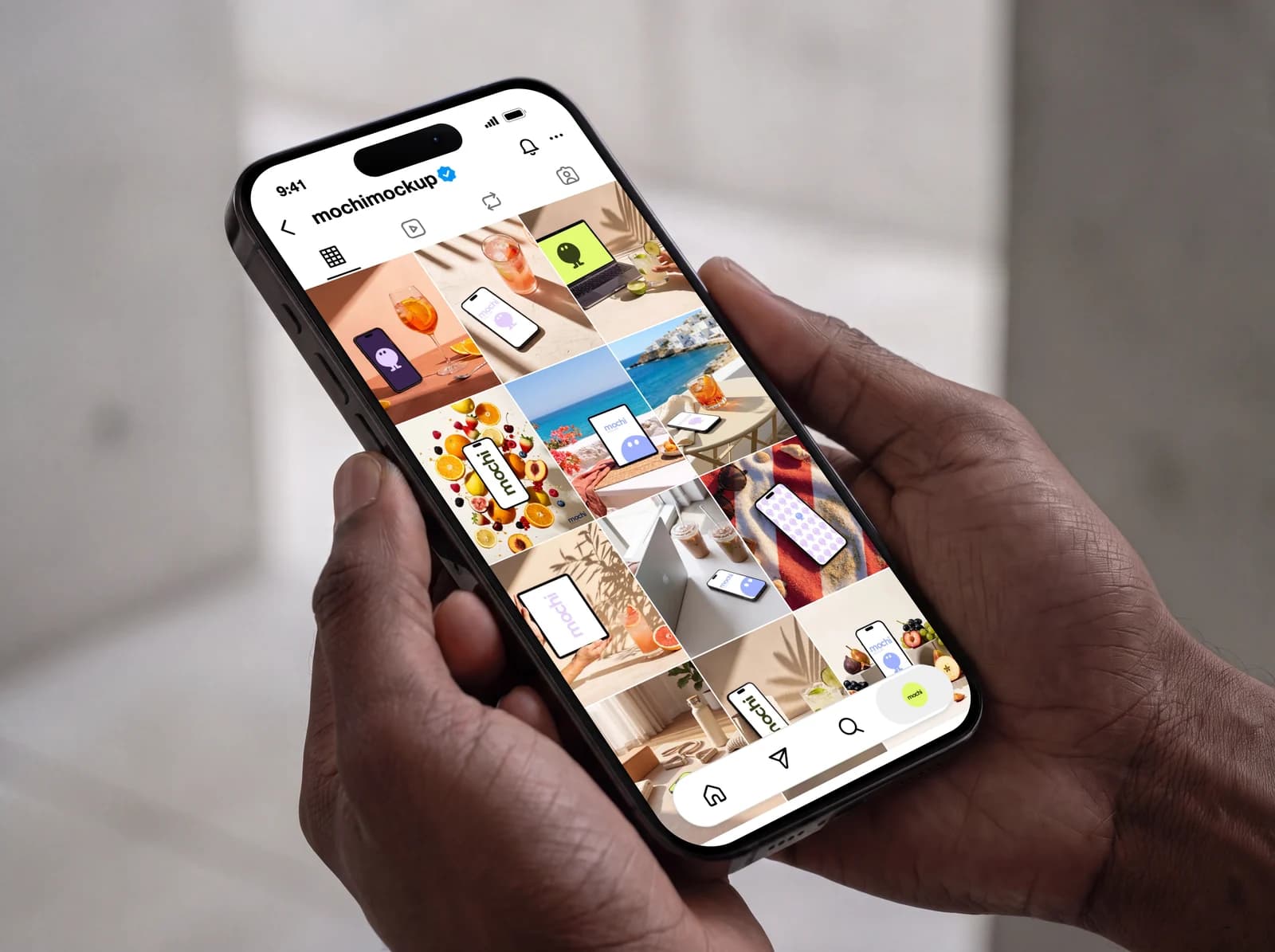
Previewing an Instagram grid means laying out your next posts as they will sit on the profile, before publishing them, and moving them around until the whole reads well. Since 2025 the profile grid uses tall 3:4 cells instead of squares, so an old square preview no longer shows what visitors see. Here is how to do it with the profile grid layout.
Why preview the grid
Most people judge an account from the profile, not from a single post: they see nine to twelve photos at once. Two dark photos side by side, three close-ups in a row or a busy photo next to a busy one are easy to miss post by post and obvious in the grid.
Step 1: open the profile grid layout
Open the Instagram profile mockup page (mochimockup.com/layouts/instagram-profile-mockup) and choose “Profile grid · 12 photos”. It shows the grid alone, under the profile's tabs, which gives the photos the most room.
Step 2: add your next 12 photos
Add the posts you plan to publish, newest first, then the ones already on the profile. Each photo is cropped to 3:4 when you add it, like Instagram does on the grid.
Step 3: reorder until it flows
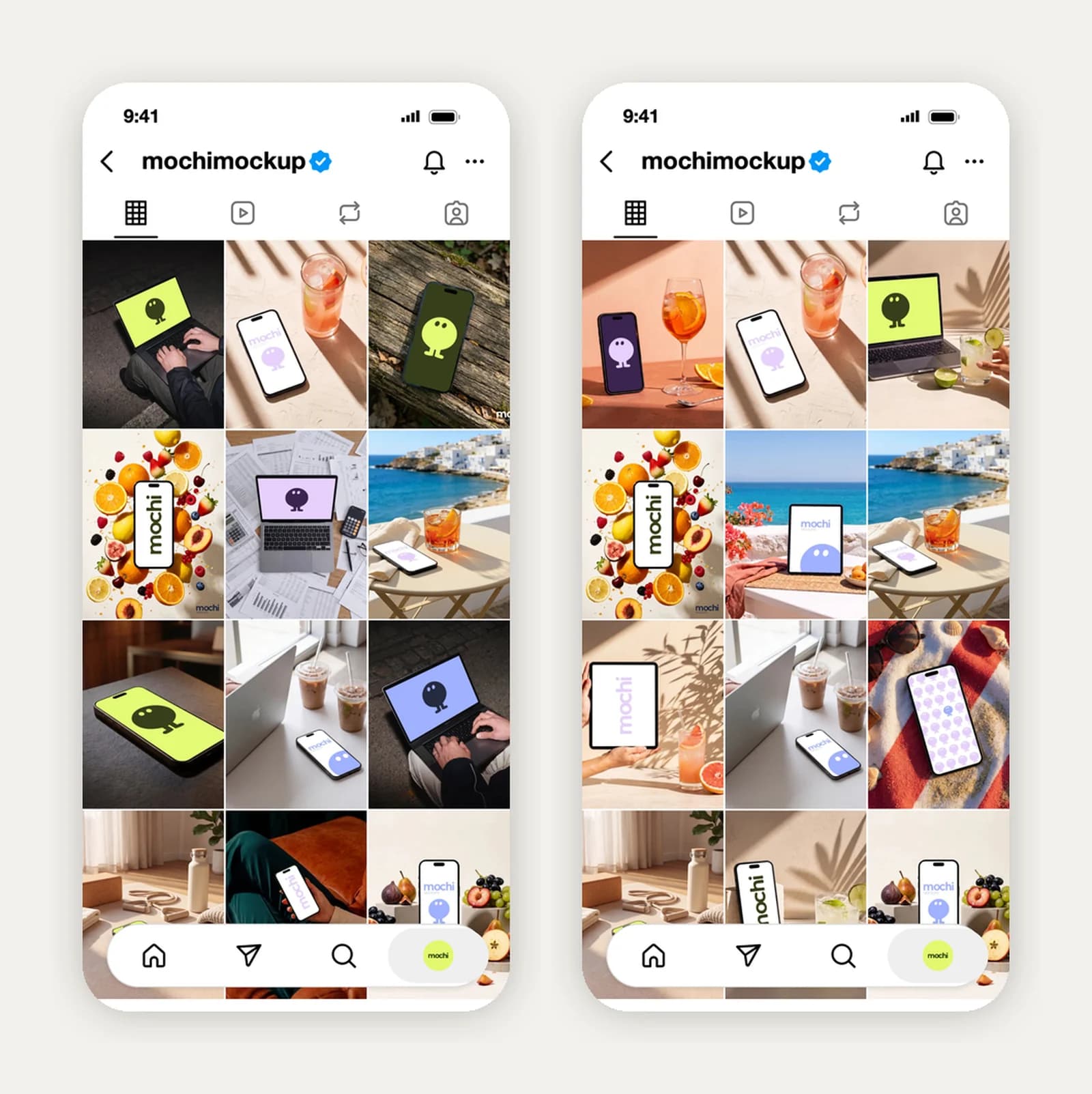
Drag a photo onto another to swap them, or use the arrows. Look for rhythm: alternate close-ups and wide shots, keep dark photos apart, repeat a colour diagonally rather than side by side. The two grids below hold the same kind of content; only the order and the picks change.
Step 4: check the whole profile
Switch to the “Profile” layout to see the grid under the bio, the stats and the highlights. It is the screen a new visitor lands on: the bio and the highlight covers should match the grid's mood, and the first row should say what the account is about.

Step 5: see it on a real phone
Place the grid in an iPhone mockup to judge it at real size, or to show the plan to a client. A grid that looks balanced on a big monitor can feel crowded on a phone.
Grid rules that hold up
- Keep the subject in the centre: the 3:4 grid crops the top and bottom of 4:5 posts.
- Plan three posts at a time: a full row changes the look of the whole grid.
- Pick two or three colours and let them come back regularly.
- Leave some breathing room: a quiet photo makes the busy ones around it stand out.